


How to Use My HUSCAP(HUSCAP Online Application System)
How to Use My HUSCAP(HUSCAP Online Application System)
What is the My HUSCAP?
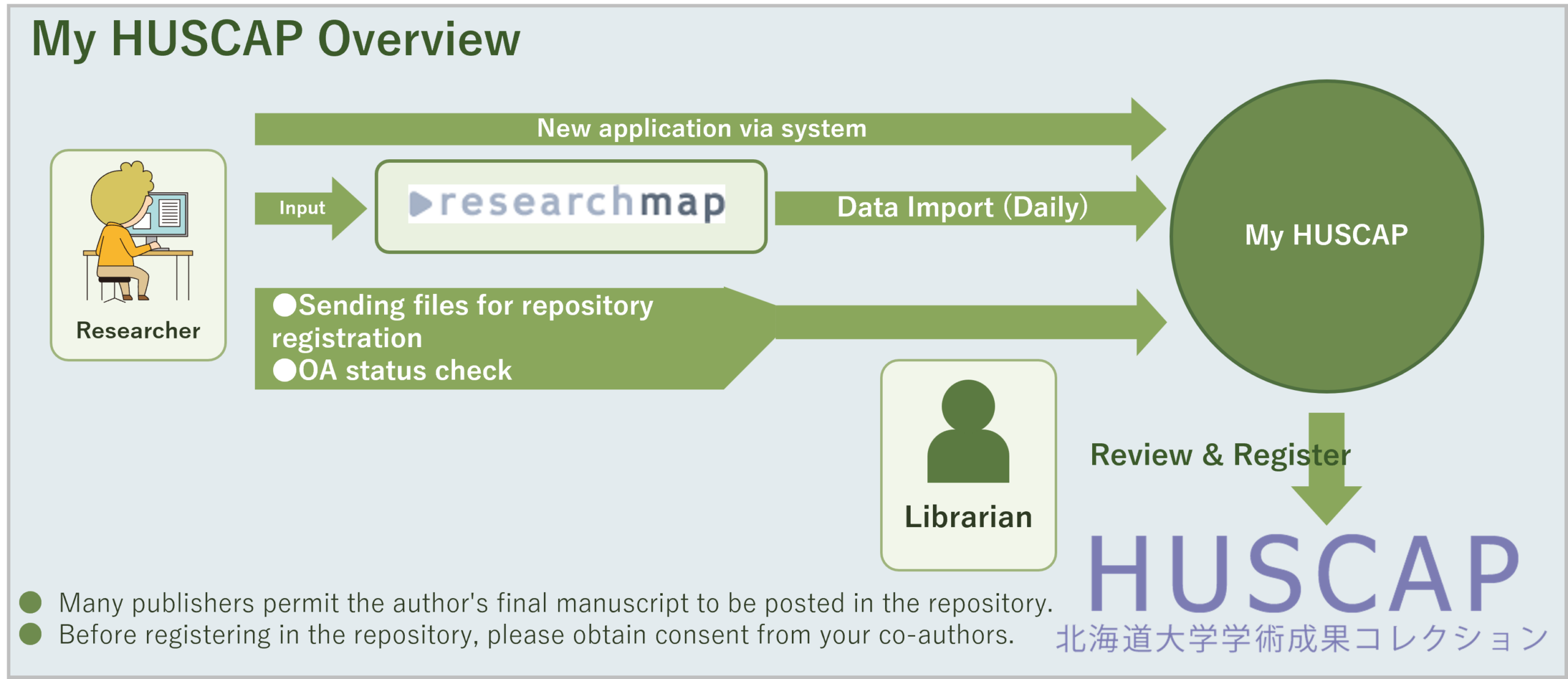
My HUSCAP is an online system for submitting article registration requests to HUSCAP.
Bibliographic information can be retrieved automatically from a DOI, reducing the effort required for data entry and making it easier to submit registration requests. In addition, article data that has been registered in researchmap is automatically imported, allowing users to reuse that information and submit registration requests more easily.
The library reviews the eligibility and conditions for repository registration, enhances the metadata, and then publishes the content in HUSCAP.
User Manual
- Eligible Users
- Login
- Understanding the Screen
- Registering an Article Not Listed in the System
- Registering an Article from the "Unregistered/Not Open Access" List
- Generating a Private Sharing Link
- Request to Add Files
- Non-Public Access Request
- Deleting Data
- Troubleshooting
- Reference Information
1. Eligible Users
This system is intended for faculty members. Login requires Hokkaido University Single Sign-On (SSO) authentication, and therefore only users with an SSO ID may use this system.
If you are not eligible to use this system, please submit your HUSCAP registration request by email to repo[at]lib.hokudai.ac.jp.
2. Login
Please log in with your SSO ID from the Login Page .
3. Understanding the Screen
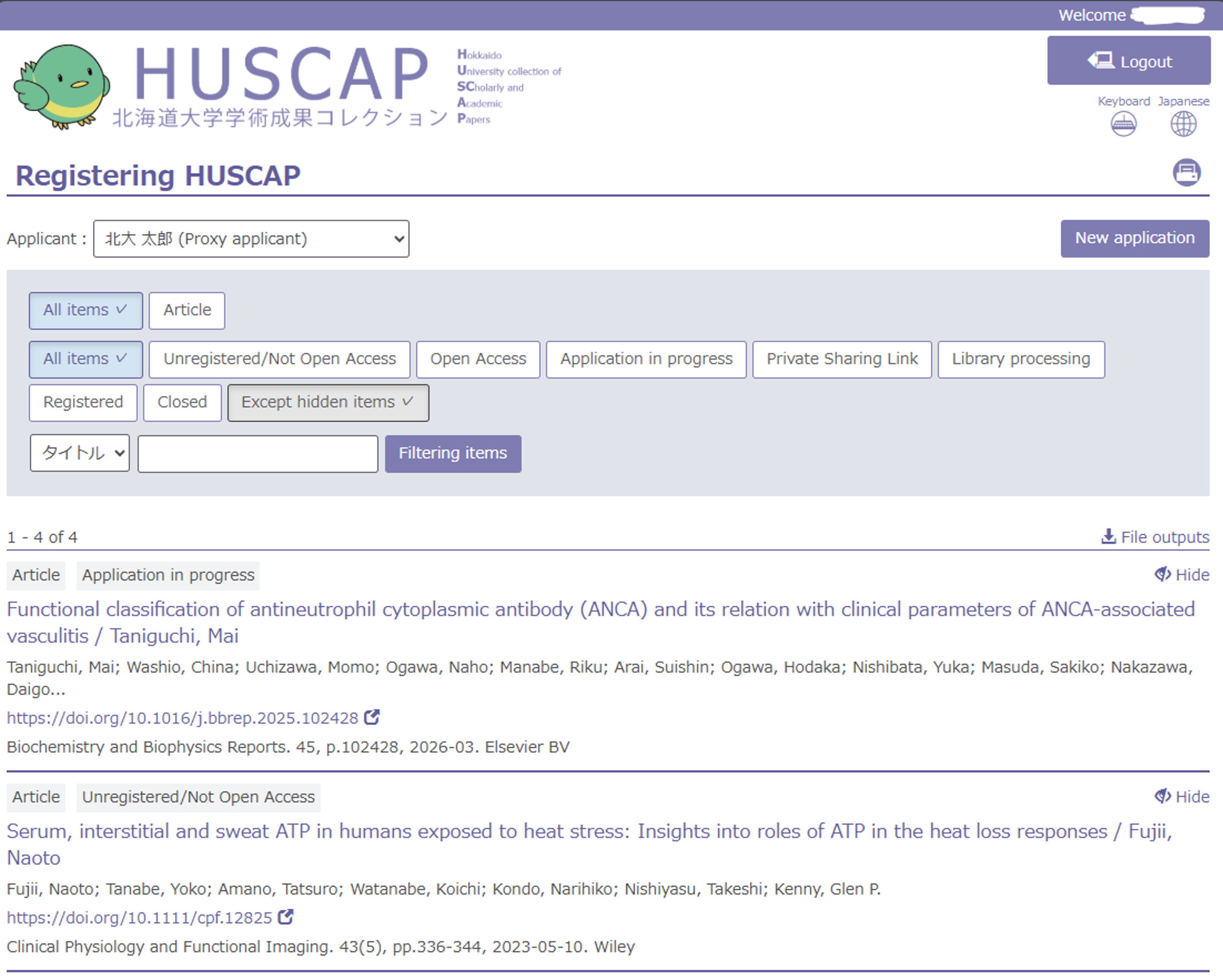
After logging in, the following screen will be displayed. On this screen, you can review article information that has been automatically imported from researchmap. Clicking an article title allows you to submit a registration request to HUSCAP.
You can also create a registration request for an article that is not listed by clicking the New application button on the right side of the screen.
The filters at the top of the screen allow you to narrow down articles by registration status. The details of each registration status are shown in the table below. You can also search for specific articles by entering a title, DOI, or other keywords.
○ Article List Screen
○ Registration Statuses
| Status | Description |
|---|---|
| All items | Displays articles in all registration statuses listed below. |
| Unregistered/Not Open Access | Articles that are not registered in HUSCAP and are not Open Access elsewhere. |
| Open Access | Articles that are already Open Access outside HUSCAP. Registration in HUSCAP is generally unnecessary. |
| Application in Progress | Articles for which the registration process has not yet been completed. Metadata entry has been completed, but the full-text file has not yet been uploaded. |
| Private Sharing Link | Articles for which a Private Sharing Link has been issued. |
| Library Processing | Registration requests that have been submitted and are currently being processed by the library. |
| Registered | Articles that have already been registered in HUSCAP. |
| Closed | Articles for which a Non-Publication Request has been submitted and that will not be made publicly available through HUSCAP. |
ℹ️ "Except Hidden Articles"
If you click the Hide button at the far right of an article in the list, that article will be hidden from view.
Clicking the Show Hidden Articles button will display hidden articles again.
ℹ️ How Open Access Status Is Determined
Open Access status is determined using the
Unpaywall REST API
.
Please note that articles not registered in Unpaywall will not be classified as "Open Access" even if they are Open Access.
○ Contacting the Library
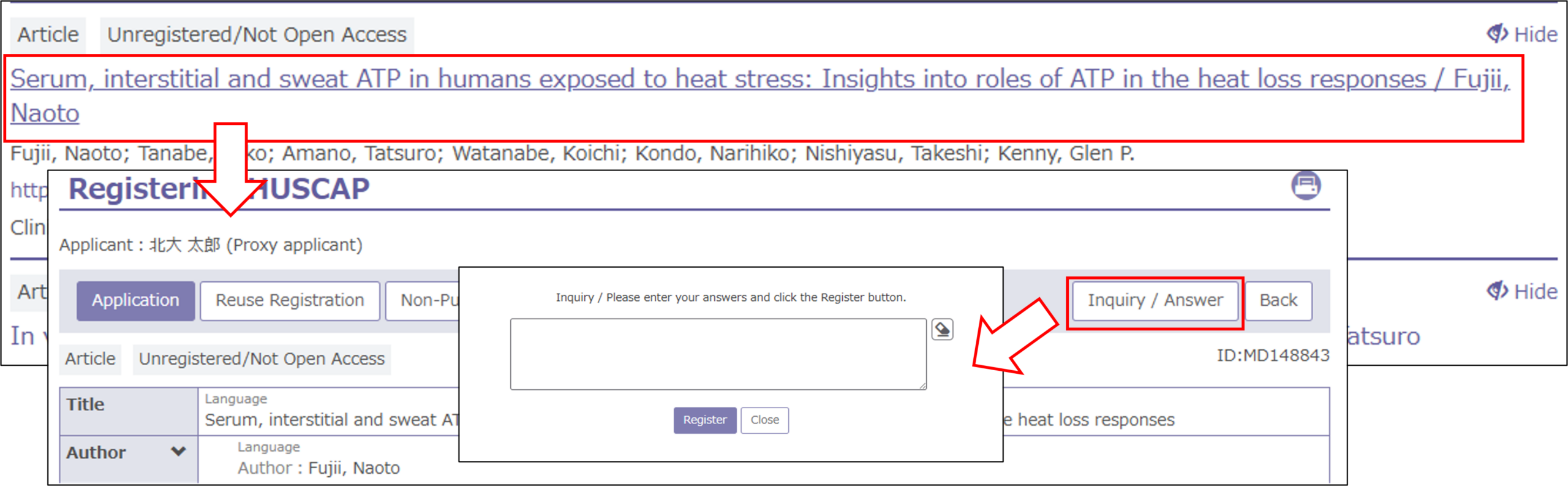
To contact the library, click the title of the article you would like to inquire about to open its details page, then click the Inquiry / Answer button. A pop-up window will appear where you can enter your inquiry and click Register to send it to the library. Responses from the library will also be sent to you by email.
○ Tags
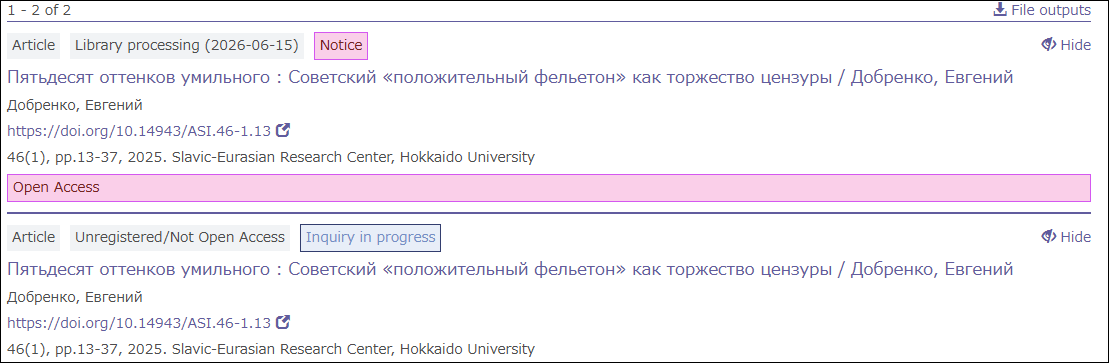
Articles for which you have submitted an inquiry are assigned the tag Inquiry in progress. Articles that have received comments or responses from the library are assigned the tag Notice. Articles with the Notice tag are displayed near the top of the list so that they can be easily identified.
Reference: Conditions for Automatic Import from researchmap
My HUSCAP imports data daily when all of the following conditions are met.
- Registered in researchmap on or after July 1, 2026
- Registered as an "Papers"
Reference: Sort Order of the Article List
Articles are displayed in the following order according to their registration status.
Application in Progress > Library Processing > Private Sharing Link > Unregistered/Not Open Access > Open Access > Registered > Non-Public
Within the same registration status, more recently added articles are displayed first.
ℹ️ Articles that have received a response from the library are assigned a Notice tag and are displayed at the top of the list regardless of the order above.
⚠️ Sorting the List
This system does not provide a function for users to sort the article list manually.
4. Registering an Article Not Listed in the System
Article data is automatically imported according to the #list"Conditions for Automatic Import from researchmap". However, articles that are not imported automatically can also be registered manually.
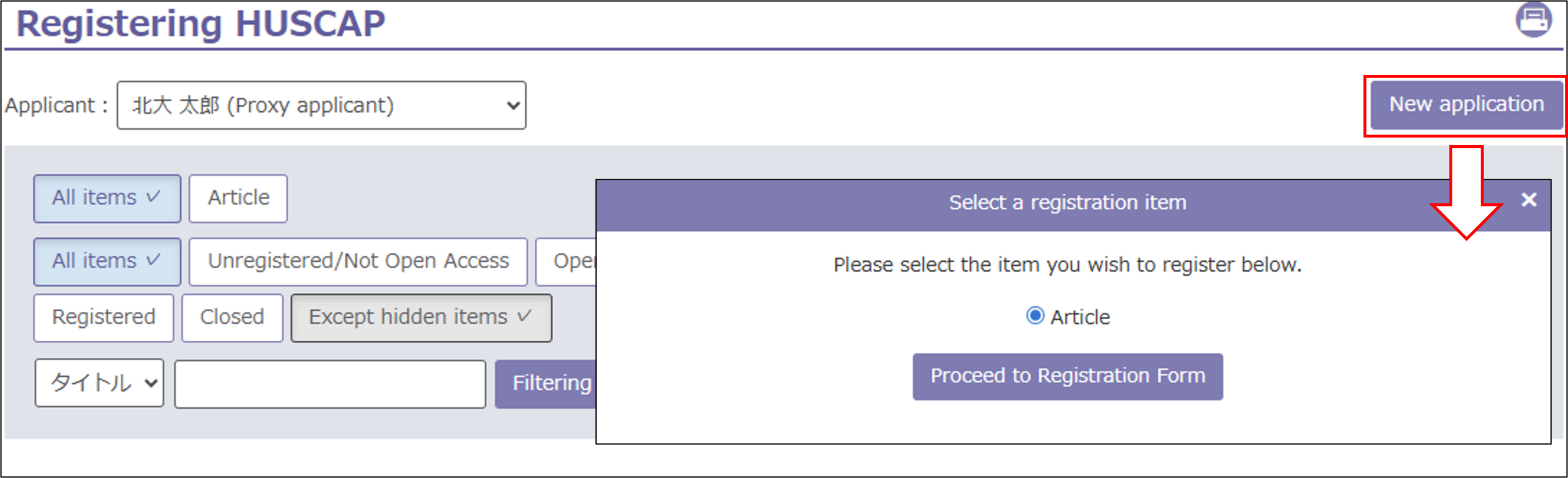
- Click New application in the upper-right corner of the article list screen.
-
Click Proceed to Registration Form.
-
The Metadata Entry screen will be displayed. Enter the required information and click Next. If the article has a DOI, enter it in the DOI field and click Retrieve Metadata to automatically populate the article information.
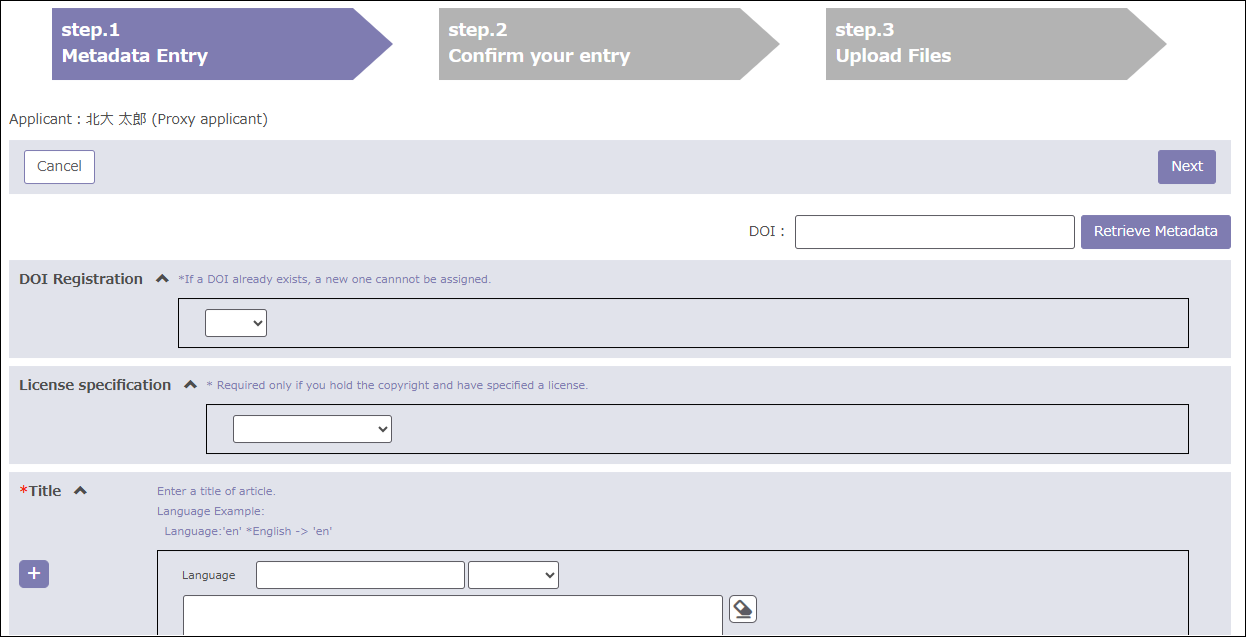 ℹ️ DOI Registration
If you select "Yes," a JaLC DOI (persistent identifier) will be assigned to the article, provided it does not already have a DOI. For details, please see DOI Assignment for HUSCAP Content.ℹ️ License Specification
Select a license if you own the copyright to the research output and wish to apply a Creative Commons license. Reference: What Is a Creative Commons License? -
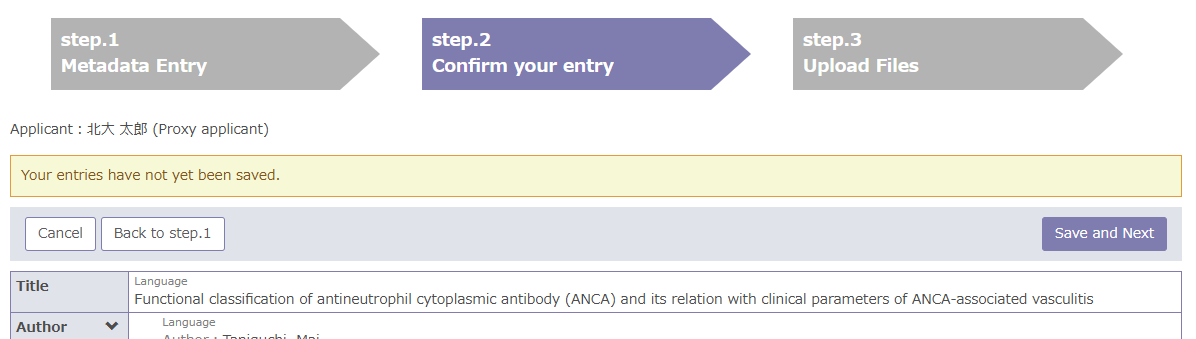
Review the entered information. If everything is correct, click Save and Next. To make changes, click Back to step 1. Clicking Save and Next will save the entered information.
-
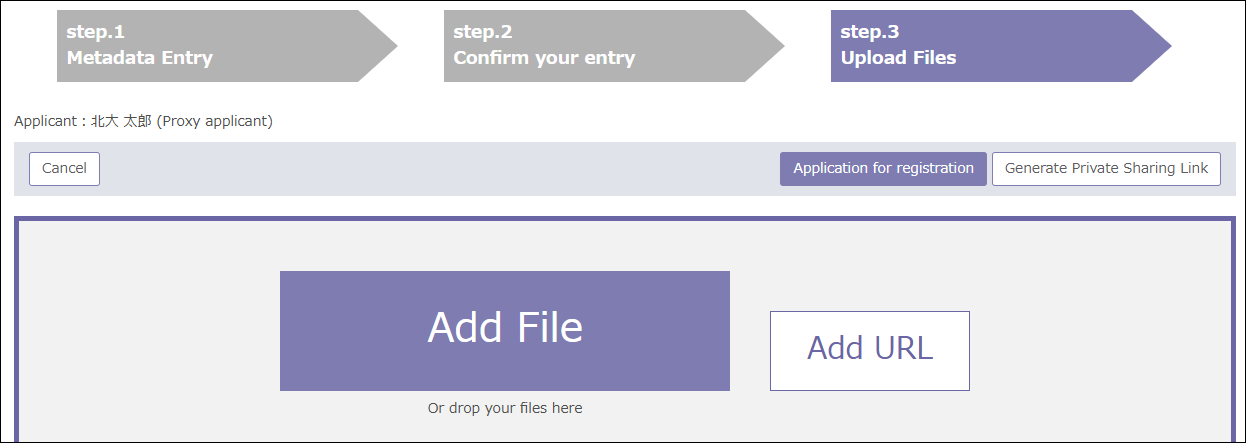
On the File Upload screen, click Add File and upload the Accepted Manuscript that you wish to register. Then click Application for registration.
For information on generating a Private Sharing Link, see
6. Generating a Private Sharing Link.
-
A confirmation dialog will be displayed. If everything is correct, check the confirmation box and upload the file.
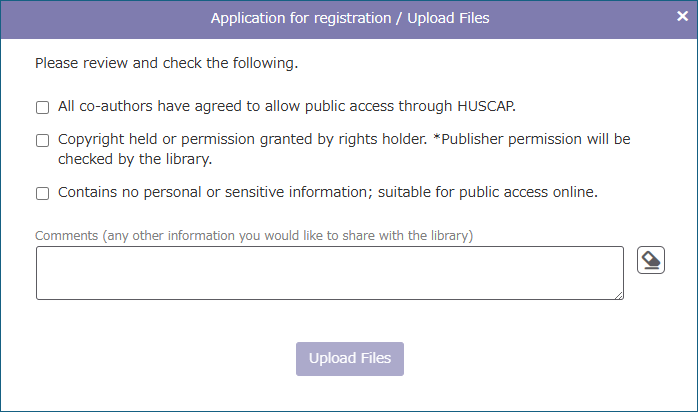
- The application process is now complete. The library will review repository eligibility and publication conditions, enhance the metadata, and publish the content.
5. Registering an Article from the "Unregistered/Not Open Access" List
Articles classified as Unregistered/Not Open Access are generally not Open Access. By submitting a registration request and uploading an Accepted Manuscript (AM), these articles can be made openly available through HUSCAP.
-
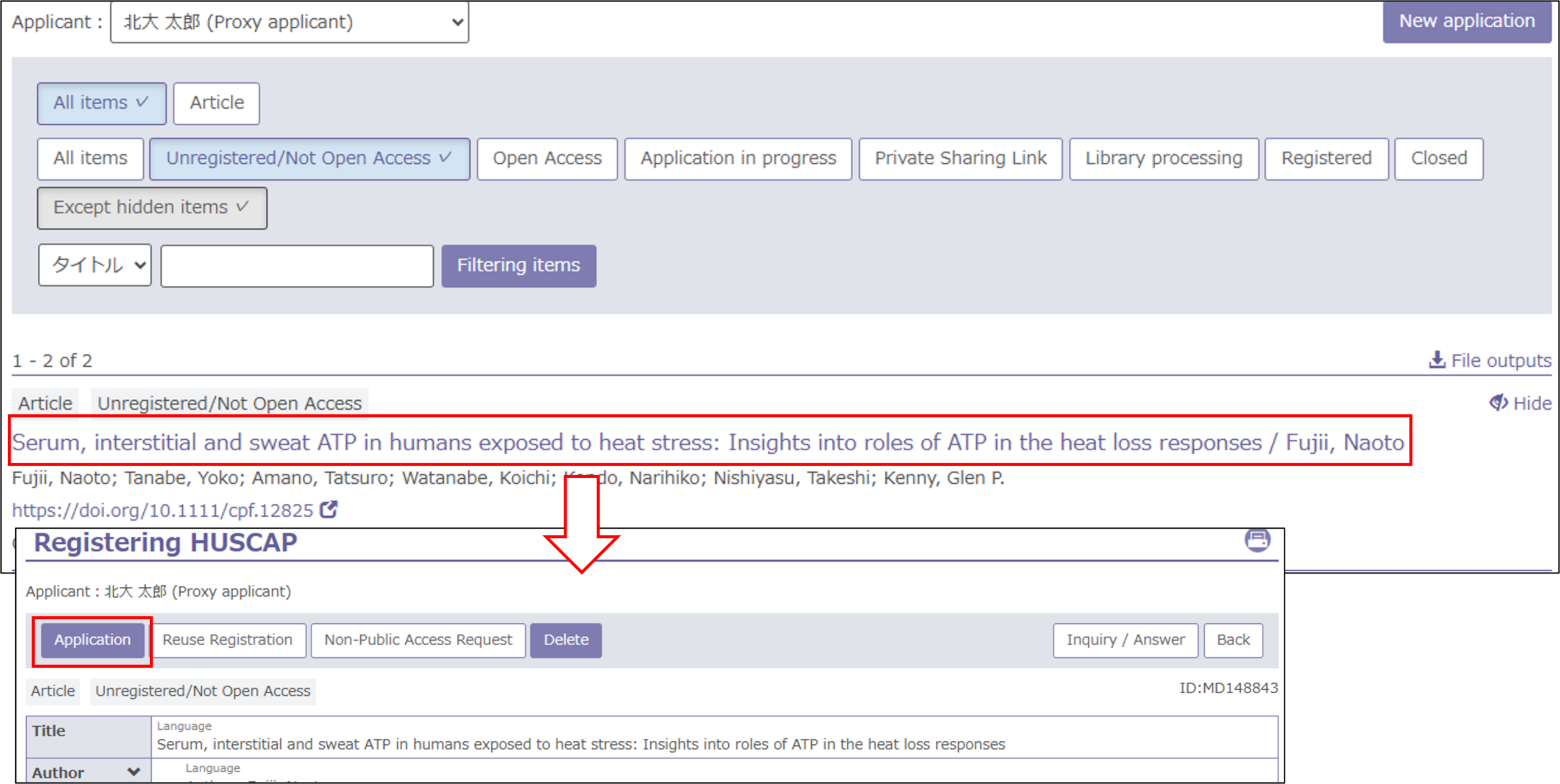
Click the Unregistered/Not Open Access button and select the article you wish to make available. Open the details screen and click Application.
-
The Metadata Entry screen will be displayed. Enter the required information and click Next. If the article has a DOI, enter it in the DOI field and click Retrieve Metadata to automatically populate the article information.
ℹ️ DOI Registration
If you select "Yes," a JaLC DOI (persistent identifier) will be assigned to the article, provided it does not already have a DOI. For details, please see DOI Assignment for HUSCAP Content.ℹ️ License Specification
Select a license if you own the copyright to the research output and wish to apply a Creative Commons license. Reference: What Is a Creative Commons License? -
Review the entered information. If everything is correct, click Save and Next. To make changes, click Back to step 1. Clicking Save and Next will save the entered information.
-
On the File Upload screen, click Add File and upload the Accepted Manuscript that you wish to register. Then click Application for registration.
For information on generating a Private Sharing Link, see
6. Generating a Private Sharing Link.
-
A confirmation dialog will be displayed. If everything is correct, check the confirmation box and upload the file.
- The application process is now complete. The library will review repository eligibility and publication conditions, enhance the metadata, and publish the content.
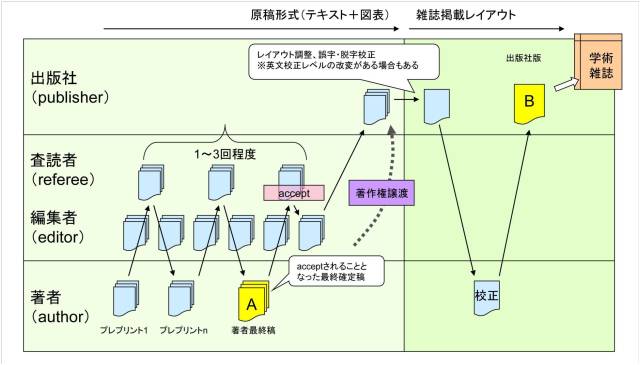
Reference: What Is an Accepted Manuscript?
An Accepted Manuscript (AM) is the version of a manuscript that has been accepted after peer review. Many academic publishers designate the Accepted Manuscript as the version that may be deposited in an institutional repository. This corresponds to version [A] in the figure below.
6. Generating a Private Sharing Link
A Private Sharing Link allows files associated with articles or research data to be shared only with individuals who know the URL. It can be used, for example, to share research data with journal reviewers during the peer-review process.
-
Proceed to the File Upload screen by following either
4. Registering an Article Not Listed in the System
or
5. Registering an Article from the 'Unregistered/Not Open Access' List.
⚠️ Although only "Article" can be selected as the item type, research data files may also be uploaded.
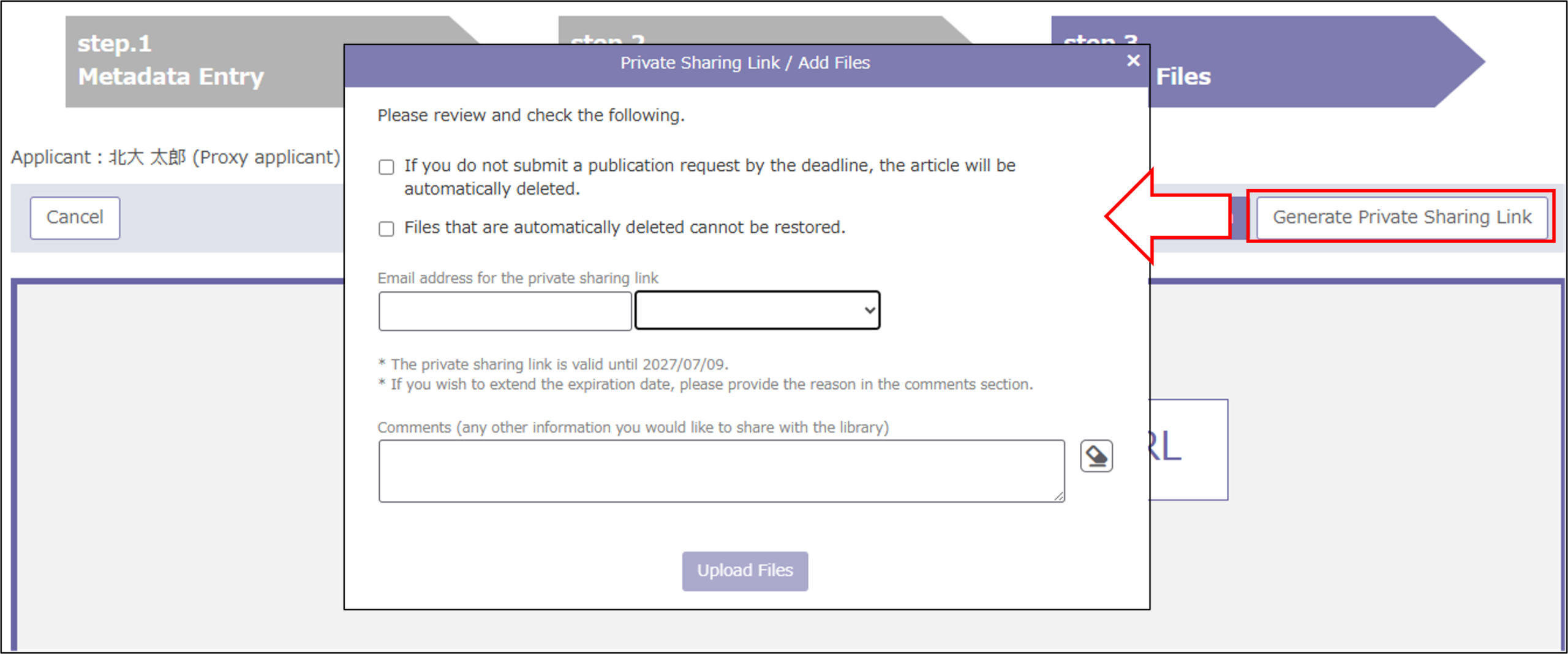
- Click Add File to upload the article or research data file, then click Generate Private Sharing Link.
-
A notice will be displayed. Review the information, check all required items, and click Upload File.
-
An email containing the Private Sharing Link and password will be sent to the specified email address. Share the URL and password with the intended recipient.
⚠️ Important Notes Regarding Private Sharing Links
- A Private Sharing Link remains valid for 12 months and allows up to 10 downloads.
- You may generate a new Private Sharing Link for the same file, but the URL will be different.
- Files shared using a Private Sharing Link must be registered by the planned registration date.
- If no registration request is submitted by the planned registration date, the file will be automatically deleted.
7. Request to Add Files
The Request to Add Files function allows you to add corrigenda, supporting datasets, or other supplementary files to an existing article.
-
Click Registered and select the article for which you would like to add files.
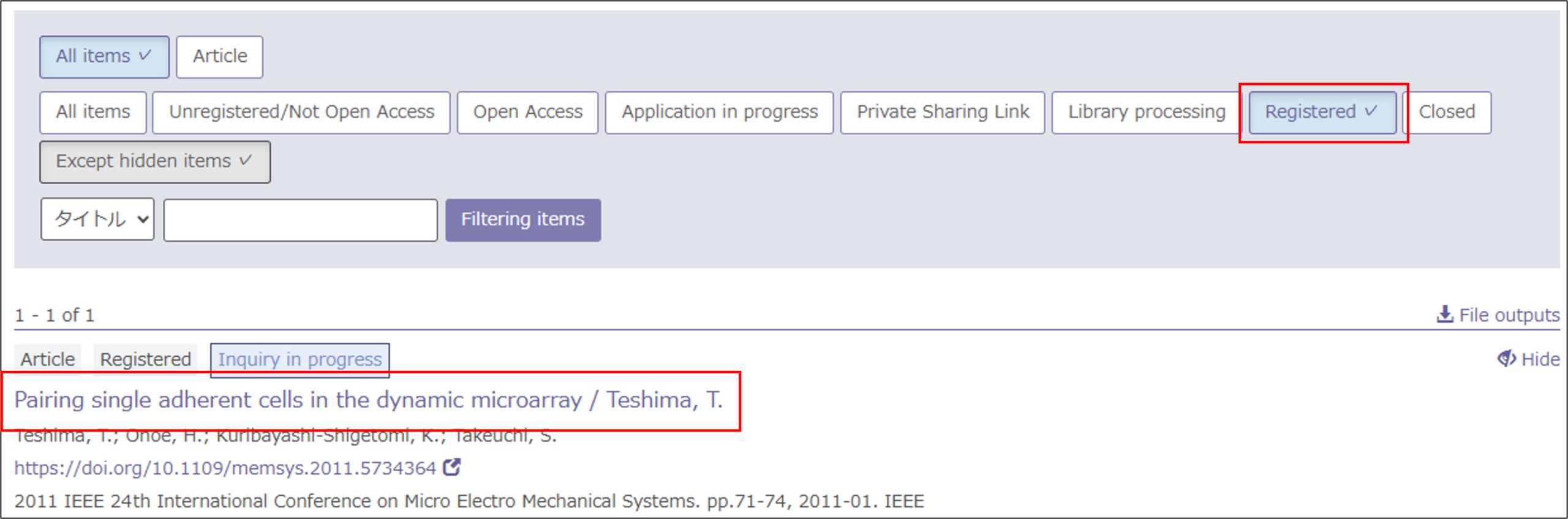 ℹ️ This function can also be used for articles in the Library Processing or Private Sharing Link status.
 -
On the article details page, click Request to Add Files on the right side of the screen.

-
Select the file you would like to upload using Add File, then click Request to Add Files. Enter the reason for the request in the comment field and upload the file.
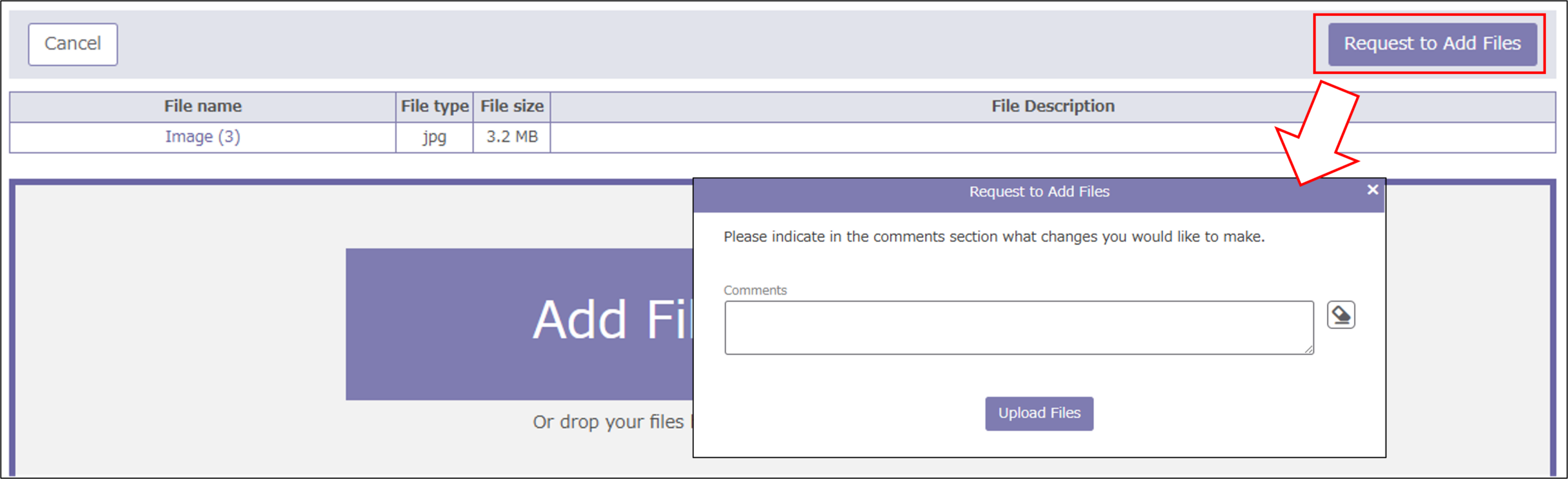 ⚠️ Important Note
According to repository policy, if a published article requires file replacement, the new file may be made available as a separate version of the resource.
8. Non-Public Access Request
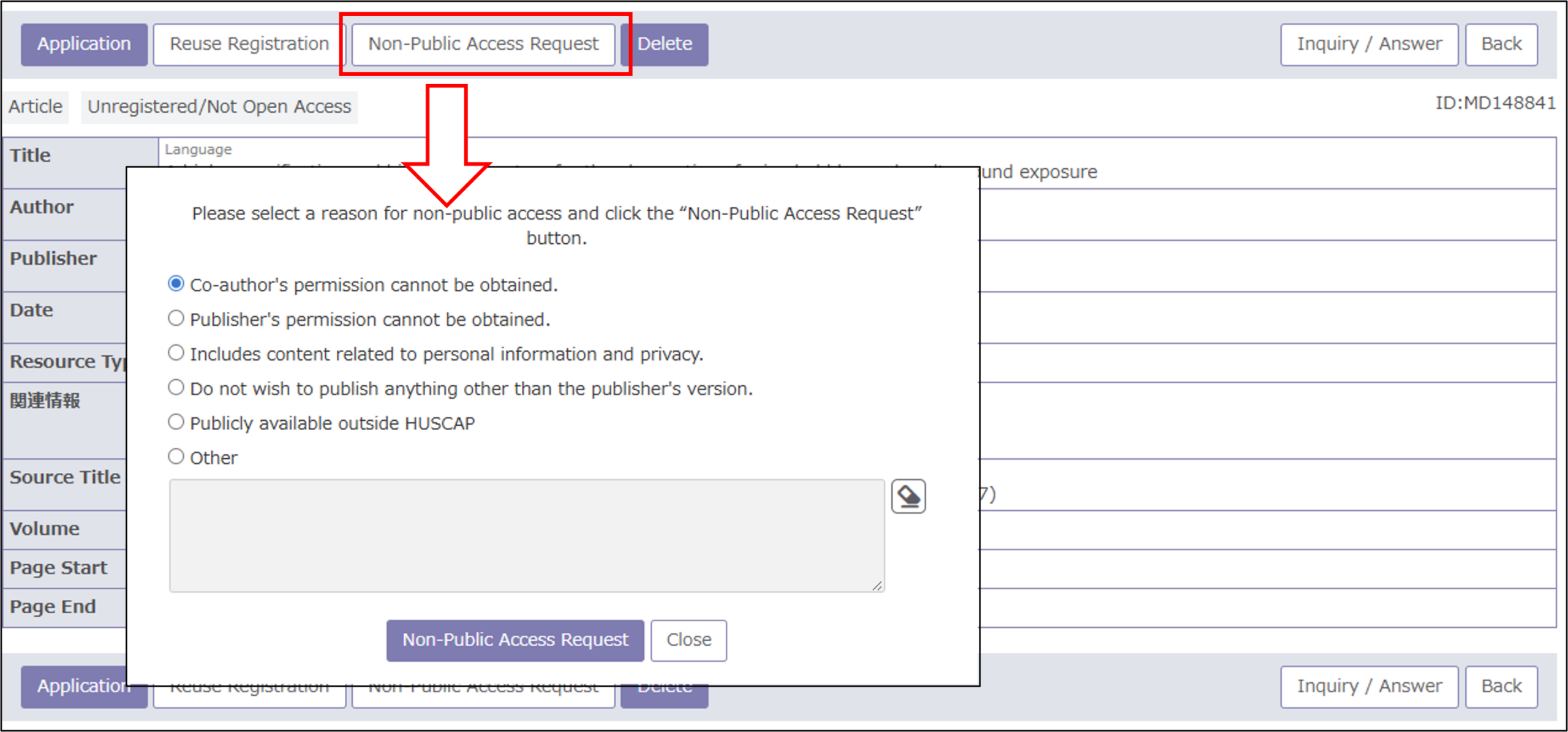
If you do not wish an article to be registered in HUSCAP, you may submit a Non-Public Access Request. The article will then be moved to the Closed list.
- Select the article for which you wish to submit a Non-Publication Request and click the article title.
- On the details page, click the Non-Public Access Request button. Select the reason for non-publication and submit the request.
⚠️ Important Note
This function is not intended to make content already published in HUSCAP non-public.
9. Deleting Data
If an article should be permanently removed from the list, for example because of duplicate records, you can delete it by clicking Delete on the article details page.
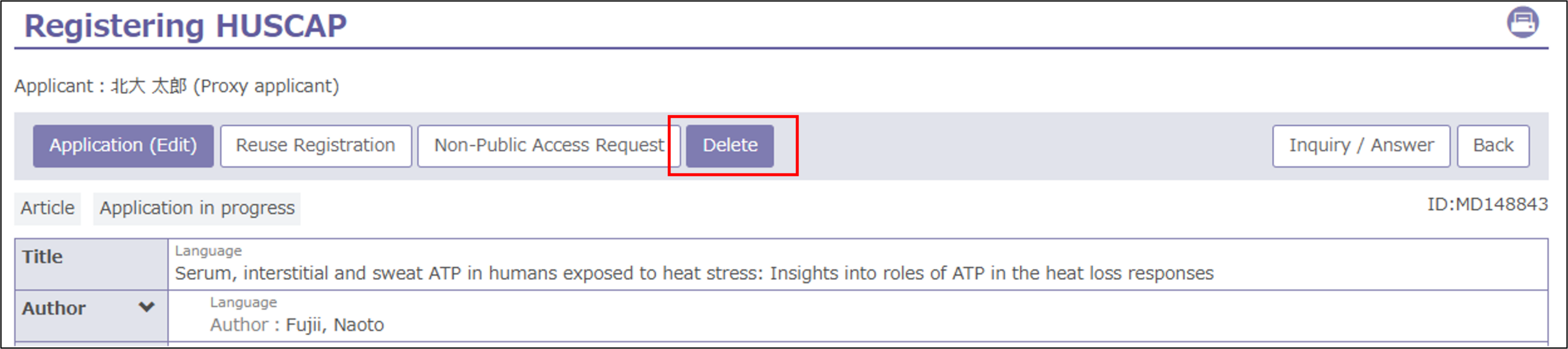
Deleted records generally cannot be restored. Whenever possible, we recommend using the Hide function instead of deleting a record. The Hide function is available from the article list screen.

Depending on the registration status, deletion may not be available.
⚠️ Important Note
This function does not delete content that has already been published in HUSCAP.
10. Troubleshooting
I cannot log in.
Please refer to 1. Eligible Users. If you meet the eligibility requirements but are still unable to log in, please contact the support desk below.
My researchmap data has not been imported.
Please refer to Conditions for Automatic Import from researchmap. If your research output satisfies all conditions but has not been imported, there may be a problem with the connection to researchmap. Please contact us and include your researchmap Member ID.
[Contact Information]
Academic Information Support Division, Hokkaido University Library
huscap [at] lib.hokudai.ac.jp